IPTV Buffering: Causes, MTU Settings and Decoder Fixes
Buffering has six distinct causes and each needs a different fix. Here is how to identify yours rather than guessing.
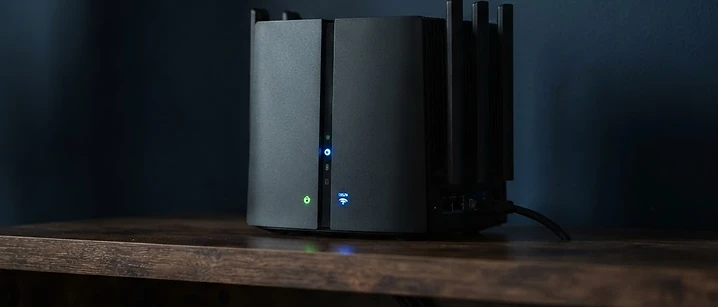
Direct answer: buffering has six distinct causes — bandwidth contention, weak Wi-Fi, MTU fragmentation, the wrong decoder, stale DNS, and ISP peak-hour shaping. Each needs a different fix, so the fastest route to a solution is identifying which one you have rather than changing settings at random.
Buffering means the player has run out of data to display, so it pauses and waits. The question is why the data stopped arriving fast enough, and the answer is almost never simply 'not enough speed'.
Start with the symptom, not the setting
The pattern of buffering tells you the cause before you change anything.
| Pattern | Most likely cause |
|---|---|
| Buffers on every channel, all day | Bandwidth or router problem |
| Buffers only on one device, others fine | Wi-Fi signal at that device |
| Buffers on sport and 4K, fine on SD | Bandwidth or decoder |
| Buffers at 8pm, fine at 2pm | Contention or ISP shaping |
| Starts fine, degrades over an hour | Device memory or heat |
| Buffers on some channels only | Provider-side stream issue |
If channels will not start at all rather than stalling mid-stream, that is a different fault — see our guide to channels not loading.
Cause 1: Bandwidth and contention
Bandwidth is the raw capacity of your connection; contention is how many other people are sharing it. UK broadband is contended at both the local and national level, which is why a connection that tests at 100 Mbps at 2pm may deliver far less at 9pm.
What to check: our guide to broadband speed for IPTV sets out the required speeds. A 1080p 50fps stream needs 6 to 8 Mbps sustained, and 4K needs 15 to 25 Mbps.
What to do: use Ethernet where possible, and check whether other devices in the house are saturating the connection. A single large download in another room will cause buffering on every stream.
Cause 2: Wi-Fi signal quality
Signal strength and speed are different things. A device can report a strong connection while delivering a fraction of the bandwidth available at the router, because walls, distance and interference all reduce throughput without reducing the signal bars.
What to check: run a speed test on the streaming device itself, not on a phone next to the router. Compare the two.
What to do:
- Move the router or the device, or add a mesh node
- Use the 5 GHz band if the device supports it
- Use the HDMI extender supplied with Fire TV sticks, which moves the stick away from the television's interference
- Use Ethernet if the device has a port — the single most effective fix available


Cause 3: MTU and packet fragmentation
MTU, or maximum transmission unit, is the largest packet size your connection can carry without splitting it. When the MTU is set too high for the path, packets are fragmented and some are dropped — producing buffering while ordinary web browsing still feels fine.
This affects connections that use PPPoE, which includes many UK fibre services.
| MTU setting | Suitable for | Notes |
|---|---|---|
| 1500 | Standard Ethernet and most cable connections | Default on most routers |
| 1472 | Some fibre connections | Common working value for PPPoE |
| 1452 | PPPoE connections with additional overhead | Try if 1472 still buffers |
| 1400 | Rare, heavily encapsulated connections | Last resort |
How to change it: open your router's admin page, find the WAN or internet settings, and look for an MTU field. Change one step at a time, save, and reboot the router before testing. Change it back if it makes no difference.
Cause 4: Hardware vs software decoding
Decoding is the work of turning the compressed stream back into a picture. Hardware decoding uses a dedicated chip and is efficient; software decoding uses the main processor and is more flexible but heavier.
| Mode | Advantage | When to use it |
|---|---|---|
| Hardware | Efficient, cooler, less battery drain | Default for almost everything |
| Software | Handles more formats, bypasses decoder faults | Specific channels with black screen or artefacts |
How to change it in TiviMate: Settings, Playback, Decoder, then choose between hardware and software. How to change it in IPTV Smarters: Settings, then Player settings, then Decoder.
Switch per-channel where the player allows it, so you only pay the software-decoding cost on the streams that need it. Our TiviMate guide covers the playback settings in more detail.
Cause 5: Stale DNS and router state
DNS translates the stream server address into an IP address. If a stale entry is cached, your device may keep trying an address that no longer serves the stream.
How to flush DNS:
- Windows — open Command Prompt and run
ipconfig /flushdns - macOS — open Terminal and run
sudo dscacheutil -flushcache - Router — reboot it, which clears its resolver cache
- Android TV and Fire TV — restart the device, then optionally set a public DNS such as
1.1.1.1
Also worth checking: how long the router has been running. Routers that have been up for months develop state problems. A scheduled weekly reboot resolves a surprising number of recurring issues.
Cause 6: ISP peak-hour traffic shaping
Traffic shaping is deliberate management of certain traffic types at busy times. It is not the same as throttling a specific service, and it is often applied to streaming categories generally.
How to test for it:
- Run a speed test at 2pm and record the result.
- Run the same test at 9pm and record the result.
- If the evening figure drops substantially, contention or shaping is present.
- Test your IPTV stream at both times and compare.
What to do: changing the DNS server sometimes routes around congested paths. A VPN can also change the route, though it adds a hop and can make things worse — our guide to whether you need a VPN for IPTV covers the trade-offs. Our guide to ISP blocking explains network-level filtering separately.
Troubleshooting checklist
- Establish the buffering pattern before changing anything
- Run a speed test on the streaming device, not on a phone
- Switch to Ethernet if the device supports it
- Check for other devices saturating the connection
- Try MTU values of 1500, 1472 and 1452 in turn
- Test hardware and software decoding on the affected channel
- Flush DNS and reboot the router
- Compare 2pm and 9pm performance
- Restart the streaming device and clear its cache
- Test the same login on a second device to isolate the provider
Common mistakes
- Changing several settings at once, which makes the result unreadable
- Trusting a speed test run on a different device from the one that buffers
- Assuming the provider is at fault before testing the local network
- Leaving the router running for months without a restart
- Reinstalling the app first, which is the slowest fix and rarely the right one
The bottom line
Identify the pattern, then match it to a cause. Wi-Fi and bandwidth account for most cases, MTU and decoder settings for a stubborn minority, and ISP shaping for the evening-only complaints. Work in single changes so you know what fixed it.
If streams never start at all, see our channels not loading guide. For audio-specific problems, see IPTV audio out of sync.
Frequently asked questions
Related guides

 Troubleshooting
Which UK Broadband Providers Block IPTV? (Sky, Virgin Media & Fixes)
Network-level filtering affects IPTV differently on different UK connections. Here is how to identify it and what actually fixes it.

 Troubleshooting
M3U Playlist Not Working? Common IPTV Playlist Errors Fixed
Most M3U errors are one of six specific faults. Here is how to identify which one you have, and what to do about it.

 Troubleshooting
IPTV EPG Not Working? Why Your Guide Is Blank and How to Fix It
A blank programme guide is one of the most common IPTV frustrations and one of the easiest to fix. Here is what actually causes it.


Ready when you are.
Pick a package, tell us your device, and we'll help you get set up for the evening.