IPTV on Fire TV: Installation, Downloader and Maintenance Guide
A complete Fire TV setup guide, from unboxing to ongoing maintenance, including the cache and memory routines that keep older sticks responsive.
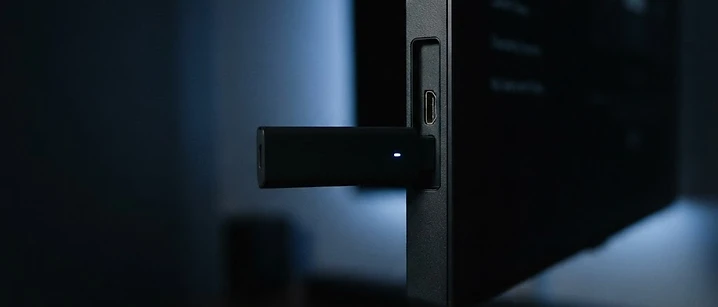
Direct answer: install an IPTV player from the Amazon Appstore, enter your provider's login details, and let the channel list build. Setup takes about ten minutes. The ongoing work is maintenance — clearing cache, managing memory and restarting weekly — which is what keeps older Fire TV Sticks responsive.
A Fire TV Stick is one of the cheapest routes into IPTV in the UK, and one of the most common sources of complaints about slowness. Both facts have the same cause: limited memory. This guide covers setup and then the maintenance that makes the difference.
Before you begin
- A Fire TV Stick, Stick 4K or Fire TV Cube, connected to your television and to Wi-Fi
- Your IPTV login details — either a server address, username and password, or an M3U link
- An Amazon account, required for the Appstore
- About ten minutes
If you have not yet decided which player to use, our guide to the best IPTV apps in the UK compares the main options.
Step 1: Update Fire OS first
Go to Settings, then My Fire TV, then About, then Check for Updates. Install anything offered before going further.
Running the latest Fire OS matters more than it sounds. Older builds carry codec and networking bugs that cause playback faults which look like provider problems.
Step 2: Install a player from the Appstore
From the home screen, select Find, then Search, and search for an IPTV player. Several are listed in the Amazon Appstore.
When comparing them, check:
- Recent updates and a healthy review pattern
- Support for your login type — Xtream Codes or M3U
- A usable programme guide
- Whether it reports the stream frame rate, which is useful for sport
Our IPTV Smarters setup guide and TiviMate setup guide walk through the two most common players step by step.

Step 3: About Downloader and shortcodes
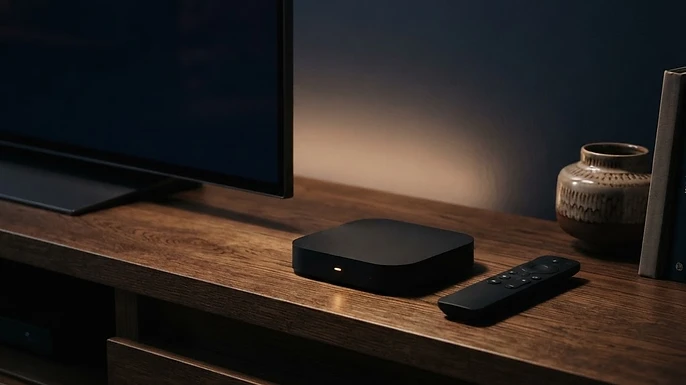
Downloader is a file-download utility available in the Amazon Appstore. It is frequently mentioned in IPTV guides because it can fetch an app installer directly from a web address.
When it is appropriate: some player publishers distribute their own Fire TV build from their official website. In that case, Downloader is a legitimate way to fetch that installer, and the publisher will supply a numeric shortcode pointing at their own download page.
When it is not: any shortcode from an unofficial source, a forum post or a messaging group. Those installers bypass store review entirely, which is exactly why they should be avoided.
Our recommendation: use the Amazon Appstore wherever the app is available. If you do use Downloader, only ever use a shortcode published by the app's own developer. Our guide to the risks of free IPTV explains what unofficial builds expose you to.
If you do use it: install Downloader from the Appstore, open it, enter the shortcode, and let it download. Fire OS will ask you to allow installation from unknown sources the first time — a permission that applies only to Downloader.
Step 4: Understanding developer options
Fire OS hides a developer menu that some guides recommend unlocking. In practice, the only setting you may need is the ability to allow installation from unknown sources, which the system prompts for automatically when Downloader first tries to install something.
You do not need to enable ADB debugging or any other developer setting to install and use an IPTV player. If a guide tells you to, treat it as a warning sign about the source.
Step 5: Enter your login details
- Open the player and accept the terms.
- Choose Login with Xtream Codes API, or M3U if you have a playlist link.
- Enter the server address, username and password exactly as supplied. Type them rather than pasting.
- Save and wait. The first download takes two to five minutes.
If the login is rejected, our login troubleshooting guide covers the error messages.
Step 6: The cache clearing protocol
Cache accumulates as you browse. On a stick with limited memory, it eventually affects responsiveness.
- Go to Settings, then Applications, then Manage Installed Applications.
- Select your IPTV player.
- Choose Clear Cache. Do not choose Clear Data, which removes your login.
- Repeat for any other streaming apps you use regularly.
- Restart the stick by holding Select and Play together for five seconds.
How often: monthly, or whenever the app becomes sluggish. It is the single most effective maintenance task on a Fire TV Stick.
Step 7: Memory management
A Fire TV Stick has far less memory than an Android TV box, and every installed app competes for it.
- Uninstall apps you do not use. Each one may run background services.
- Close apps properly by pressing back until you reach the home screen, rather than switching away.
- Avoid loading very large playlists. Hiding unused categories reduces the memory the guide consumes.
- Restart weekly. Android-based devices accumulate background processes.
- Consider a 4K model if you watch 50fps sport regularly — see our IPTV box guide.
Common Fire TV issues and fixes
| Symptom | Likely cause | Fix |
|---|---|---|
| App stutters or closes | Memory exhausted | Clear cache, uninstall unused apps, restart |
| Buffering on sport only | Device decoding 50fps in software | Check codec settings; consider a 4K stick |
| Black screen with sound | H.265 not supported in hardware | Switch the channel to software decoding |
| Login rejected | Typo or trailing space | Re-type credentials manually |
| Remote unresponsive | Stick overheating or busy | Unplug for 30 seconds, use the HDMI extender |
| Channels missing | Playlist not refreshed | Refresh the playlist in the player settings |
The bottom line
Fire TV setup is quick; keeping a stick fast is the real work. Install from the Appstore, avoid unofficial installers, clear the cache monthly and restart weekly. Do those things and a basic stick will stay usable well beyond the point most people give up on it.
For persistent playback problems, work through our buffering guide and the guide to channels not loading.
Frequently asked questions
Related guides

 Devices
MAG Box IPTV Setup UK: Portal, Stalker and Configuration Guide
MAG boxes use a different login model from app-based players. Here is how portal configuration works, and why the MAC address matters.

 Devices
IPTV on Apple TV and Roku: What Works in the UK
Apple TV and Roku are excellent streaming devices, but neither is designed with IPTV in mind. Here is what works on each, and what to do when an app is not in the store.

 Devices
IPTV on Smart TV UK: Samsung, LG and Android TV Guide
A practical guide to running IPTV on a UK Smart TV — which platforms support it, how setup works, and what to do when an app is not available.


Ready when you are.
Pick a package, tell us your device, and we'll help you get set up for the evening.